
Table of contents
Adviser portals login support
Frequently asked questions
To support you logging in to our various adviser portals (Life Protection Platform Adviser Portal, Learning Hub and Plan Enquiry), we have answered your most frequently asked questions below.
Login and account access
If you’ve already registered you can use the same username and password or Unipass certificate to access our Life Protection Platform, Learning Hub or Plan Enquiry.
To do this, the firm you are associated with must be the same as the firm FCA number your account is registered under. If you can’t remember your username or Unipass certificate, contact our eSupport team.
Call us on 0370 850 4419 and select option 2. We’re open Monday to Friday (excluding bank holidays) between 9:00 am to 5:30 pm. We may record or monitor our calls to improve our service.
You can choose to log in to Life Protection Platform, Learning Hub or Plan Enquiry through two different options:
- Log in using your username and password
- Log in with Unipass
Both options will require you to complete multi-factor authentication before you can access the adviser portal.
All passwords must contain:
- At least 12 characters
- At least one of each of the following:
- Lower case letters (a to z)
- Upper case letters (A to Z)
- Numbers (0 to 9)
- Special characters (for example !@#$%^&*)
The password must not contain any parts of your username, first name or last name. It cannot be the same as your last eight passwords.
If you’ve forgotten your password, you can quickly and easily reset it and get back on track in a few steps.
- Select the ‘Forgotten password’ option on the login page
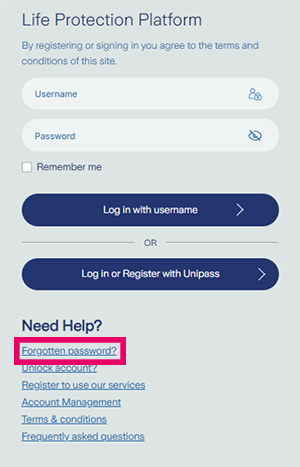
- Enter your username and select the ‘Reset via Email’ button
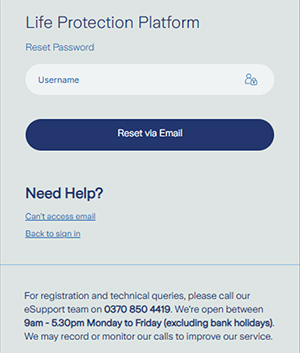
- You’ll receive an email to the address associated with your username, including a unique link to reset your password
For security, your link will only be valid for one hour, so it’s vital to keep your eye out for this. Check your junk folder and make sure it hasn’t snuck in there by accident.
If you’re on the go and don’t have access to email, call our eSupport team instead.
Call us on 0370 850 4419 and select option 2. We’re open Monday to Friday (excluding bank holidays) between 9:00 am to 5:30 pm. We may record or monitor our calls to improve our service.
For security reasons, your account will be locked after five incorrect passwords or five incorrect one-time passcode attempts.
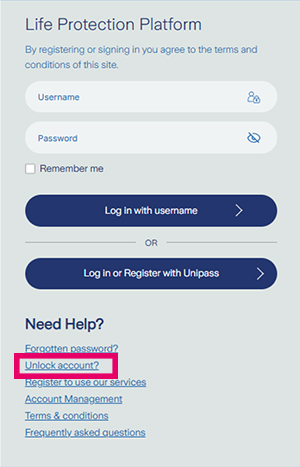
If this happens, you will receive an email containing instructions on how to unlock your account. Alternatively, you can select the 'unlock account' link on the login screen and follow the on-screen instructions to regain access. Once your account has been unlocked, you can log in again using your username and password.
Multi-factor authentication (MFA)
MFA is a security method that requires users to provide two or more different types of verification to prove their identity when logging in to an account or system.
For example, instead of just entering a password, MFA might require users to also enter a code sent to their phone or email, or use a code generated through an authenticator app.
To protect your business and our shared customers, Zurich has added MFA to our adviser portals to help prevent unauthorised access to customer data even if login details are compromised.
It enhances security by requiring additional verification steps to make it more difficult for unauthorised users to gain access. This is particularly important for protecting sensitive information and preventing security breaches.
Through our adviser portals, we use an identity management service called Okta. Okta provides secure authentication and authorisation for Zurich’s applications.
We have also enabled MFA through the Unipass login journey.
The process for registering to use MFA will be enabled the first time you log in to any of the adviser portals after we switch this service on.
- Step 1: Log in to your Zurich account
- Step 2: You will be prompted to set up multi-factor authentication. Choose your preferred authentication method (Authenticator app, SMS, voice call, email)
- Step 3: Follow the on-screen instructions to complete the setup
- Step 4: Once set up, you will use this method to authenticate each time you log in
- Step 5: You can choose to add additional MFA methods within the new account management page
- SMS authentication: Receive a one-time passcode via SMS text message sent to your registered phone number
- Voice call authentication: Receive a one-time passcode via a voice call to your registered phone number
- Email authentication: Receive a one-time passcode sent from ‘zurichprotectionnoreply@uk.zurich.com’ to your registered email address
- Okta Verify authenticator app: Approve login requests with the Okta Verify app on your mobile device
- Google Authenticator app: Enter verification codes generated by the Google Authenticator app on your mobile device
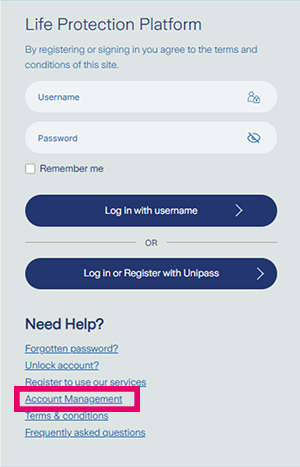
Yes, you can change your MFA method by logging in through the Account Management link on the login screen. Within the Account Management page you can add or remove any of the MFA factors available as well as update your password and the email address connected to your username. Follow the instructions provided to set up a new MFA method.
If you receive an MFA prompt that you did not initiate, it could mean that someone else is trying to access your account.
If this happens:
- Do not approve the request
- Do not share the code with anyone
- Do not click on any links in the email
- Do not respond to callers contacting you who refer to the MFA notifications
You should:
Change your password for the application and any linked account (if you are able to log in securely, without using any links in the email).
You will need to use MFA each time you log in to your account, unless you tick the box to ‘remember your device’. This lasts for 12 hours. You may also be prompted for MFA periodically or when performing certain sensitive actions like changing your password through the ‘Forgotten password?’ link on the login screen.
Yes, you can tick the box to remember your device for up to 12 hours. This means that if you are logging in multiple times in the same day, you will not be asked for MFA each time you log in.
Yes, we strongly recommend registering more than one authentication method.
Having a backup method can help avoid disruption if your primary method is unavailable.
- Ensure you have a stable internet connection
- Double-check that you are entering the correct code or responding to the correct prompt
- Restart your device and try again
Please also refer to our troubleshooting guide:
If you’re still having issues, call our eSupport team on 0370 850 4419 and select option 2. We're open between 9:00 am to 5:30 pm Monday to Friday (excluding bank holidays). We may record or monitor our calls to improve our service.
When you request a voice call and you have a caller ID function you may see an international number calling.
When you request a code via the SMS option you will receive an SMS message from Okta or Zurich Okta.
Each one-time passcode is valid for five minutes. If the code has expired, request a new one to complete your log in journey.
Security and troubleshooting
We strongly recommend that you do not share the code you receive with anyone as this could give them access to your account.
No, MFA is linked to an individual user's account and should only be used by the authorised account holder. Authentication codes and approvals should never be shared.
We only send one-time passcodes (OTPs) and related emails when you ask for them while logging in. Genuine Zurich multi-factor authentication (MFA) emails always come from ‘zurichprotectionnoreply@uk.zurich.com’.
To keep you safe, OTP emails will never have a clickable link. If you get an email pretending to be from Zurich with an OTP that includes a link, don’t trust it. Avoid clicking on the link and treat it as suspicious.
If you don’t get a code, check your spam or junk folder first and then wait a few minutes. If you still haven’t received it, you can request the code again. Depending on the authentication method you are using there are a few points to check:
SMS authentication
- Check your mobile signal
- Confirm your registered mobile number is correct
- Request a new code
Email authentication
- Check your junk or spam folder
- Confirm your registered email address is correct
- Request a new code
Voice call authentication
- Ensure your phone is available to receive calls
- Check your registered number
- Request another call
Authenticator apps
- Ensure the time and date settings on your device are correct
- Try generating a new code
If you continue to have problems, contact the Zurich eSupport team.
Before you can update your email address on the Account Management page, you’ll need to set up another authentication method.
Add an alternative to email authentication. This will then allow you to edit your email address.
If you no longer have access to your email address, contact the Zurich eSupport team.
Unipass
Unipass, from Origo Secure Internet Services Ltd, creates a unique online identity for use on multiple UK financial services websites on any device and is free for users. Unipass Identity provides you with one secure online account, which you can use to log in to multiple financial services websites.
With your Unipass Identity account, you can download and store a Unipass Certificate (a small, encrypted file on your PC which uniquely identifies you).
Portals and Product Providers who support Unipass will accept your Unipass certificate without you having to set up and remember a new identity on their website. This makes secure access to their systems simple.
If you would like more information about Unipass digital certificates, or would like to apply for one, visit www.unipass.co.uk. Remember, Unipass Identity is free for users.
You can access the Unipass helpdesk which provides advice on the various verification methods supported by Unipass.
Devices and account recovery
If you change your mobile phone or mobile number:
- Log in using an alternative MFA method if available
- Update your authentication settings
- Re-register your preferred MFA method
If you are unable to access any registered authentication method, contact the eSupport team.
If your phone is lost, stolen or unavailable:
- Use a backup MFA method if you have one enabled
- Contact the eSupport team if you cannot access your account
For security reasons, we may need to verify your identity before restoring access.
Protection help point
Including web support.